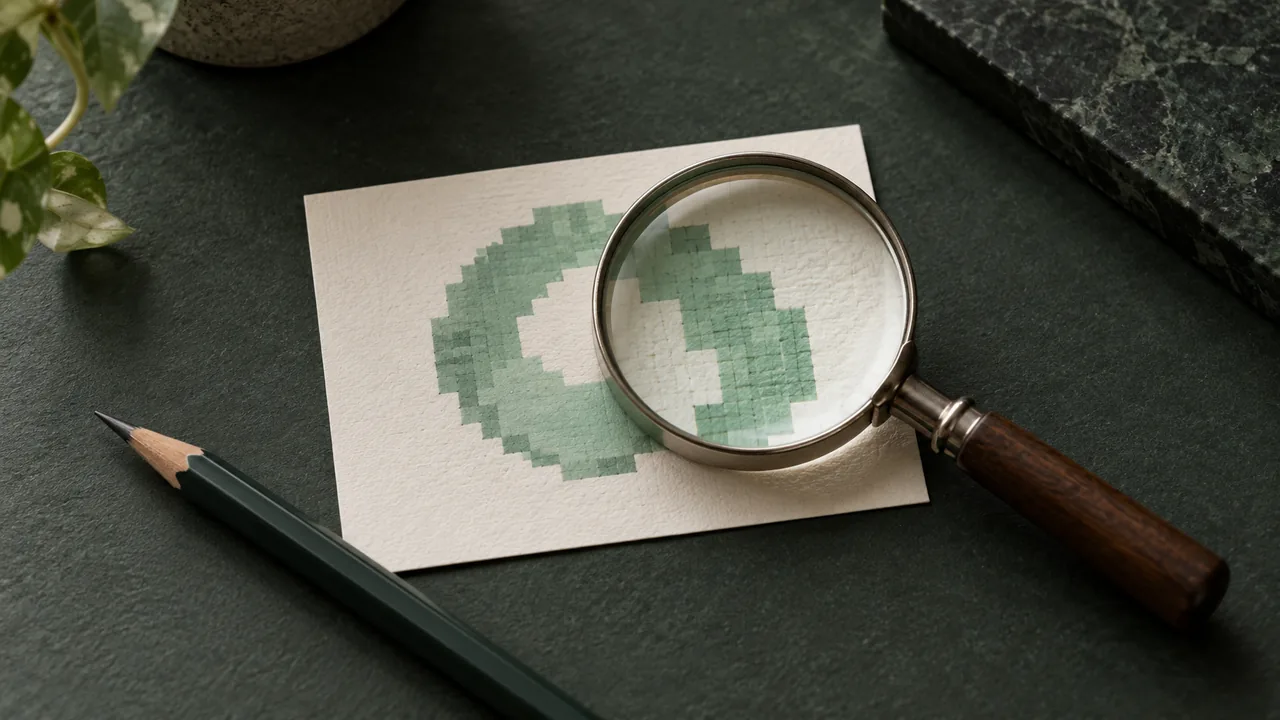


A small logo can become a useful SVG when its important shapes are still visible. A blurred logo with missing letter openings is a different problem: tracing can draw smooth boundaries, but it cannot establish the original shape of information that has disappeared.
Start by asking what needs to survive at the final size. If the mark is a simple symbol for a website header, a trace may be enough. If it is a wordmark for large signage, the same source may require a better original or manual reconstruction.
This guide helps you make that decision before spending time on settings. It uses a real 64 × 64 conversion fixture, explains common source defects and gives you a concrete way to review the result. For the full upload-to-export procedure, use the logo vectorization guide.
First decide whether the source contains enough information
Inspect the original at its native pixel size, then enlarge it to understand the boundaries. Pick the smallest feature that must survive: a letter opening, the space between two strokes, a narrow notch or a detached dot.
If the feature is distinct in the pixels, it is reasonable to try tracing. If it is ambiguous, treat the output as a reconstruction that needs comparison with another reference. If the feature has completely merged into its surroundings, look for a better source or plan to redraw it.
| Source condition | What it means for the next step |
|---|---|
| Small but distinct flat shapes | Try the converter and inspect gaps and corners |
| Clear silhouette, unreadable wordmark | Trace the symbol; obtain or rebuild the lettering separately |
| Large image with soft edges | Investigate whether it was enlarged from a smaller source |
| Blocky noise around letters | Look for a cleaner export before tracing |
| Photograph of a printed logo | Straighten and isolate it; expect a different job from a digital export |
| Missing critical detail | Find another reference or redraw that part |
There is no single pixel width that makes every logo safe. A simple two-shape mark and a detailed crest place very different demands on a 128-pixel image. Judge the smallest meaningful feature, rather than the overall dimensions alone.
Write down what you observe. “The inner triangle is visible but narrow” tells you what to inspect after conversion. “Low resolution” describes a limitation, but does not tell you which repair to make.
Find a better original before enlarging the one you have
Give the source search a short, deliberate pass before enlarging the thumbnail:
- Design handoff: look for the approved SVG or native design file, including older agency deliveries. Ask for the actual file, rather than a screenshot of its preview.
- Website assets you are authorized to use: inspect the logo image’s source or ask the site owner for the uploaded asset. A responsive site may display a larger original at a small size.
- Existing PDF or slide artwork: open it in a suitable editor and select the mark. It may contain useful vector objects, or it may be the same embedded bitmap. The extension alone settles nothing.
- Previous print supplier or designer: request the approved master and confirm that it is the current logo version.
Keep the source and its origin together. An old vector with the wrong lettering is not automatically a better reference than the current raster. If the search produces only the same small image in different containers, move on to a deliberate trace or redraw instead of repeatedly downloading it.
Compare files at the same displayed size. A larger file is useful when it contains additional detail. If the edges have the same broad blur as the thumbnail, the larger dimensions may simply spread the old samples over more pixels.
Prefer a direct digital export over a screenshot when possible. Keep a transparent PNG if it is the clearest source, but do not discard a good JPG just because of its extension. Choose the file with the best evidence of the intended boundaries.
Do not save a JPG as PNG and expect the JPEG noise to disappear. The new PNG can preserve the current samples without another lossy JPEG step, but that is a storage change. It does not reconstruct the logo.
Keep every source candidate until you have reviewed the trace. It is easier to compare two conversions from known inputs than to remember whether the file named final-large.png really had cleaner lettering than logo-old.jpg.
What a 64-pixel example actually tells us
The illustration above uses Summit, a first-party geometric development fixture. The reference was rasterized to a transparent 64 × 64 PNG and passed to an archived Vectali browser-engine build with an explicit eight-color setting. The SVG was saved without editing.
The source PNG is 1,584 bytes. The recorded SVG is 1,615 bytes and contains two path elements. The fixture manifest records the method, hashes and limitations.
Inspect the small inner triangle and its separation from the surrounding shape. That gap is more informative than the large outside silhouette. A result could retain the general mountain-like shape while changing the feature that gives the mark its character.
The enlarged raster illustration uses nearest-neighbor display to make the original pixel grid visible. It is an explanatory enlargement, not an attempt to add detail before conversion. The trace is the actual archived output, rather than an idealized replacement drawing.
This is a controlled, flat, geometric example. It does not prove that a 64-pixel customer wordmark will work equally well, and its explicit palette setting is separate from the current automatic-palette benchmark. Use it to practice inspection, then judge your own input.
Try comparing the source and output in two passes. At ordinary size, ask whether the mark still reads as intended. Enlarged, inspect the triangle’s point, the narrow separation and the diagonal edges. These are different questions, and both matter for a useful handoff.
Prepare a small logo without making the evidence worse
Crop unrelated surroundings, while leaving intentional clear space and the full edge of every stroke. A screenshot containing a nearby caption gives the tracer extra content that has nothing to do with the logo.
Keep an untouched original. If you remove a background, adjust contrast or repair a speck, save a separate working copy. A preparation step is useful only if it improves the features you need without damaging another part of the mark.
Resist a strong sharpening filter as the first response to blur. It can introduce halos or exaggerate noise around edges. Blurring can make noise less visible while also erasing a narrow opening. Compare any prepared copy against the original pixels before tracing it.
For a source photographed at an angle, correct the perspective before assessing its proportions. A vector trace can faithfully follow the skewed appearance while remaining the wrong geometry for the original logo. Automatic smoothness is not a substitute for a trustworthy reference.
If the source is oversized, check browser and API limits before reducing it. Those limits differ. Resize deliberately and recheck the smallest details after the change; a smaller upload that loses the crossbar in a letter is not a successful preparation.
Make a first trace, then change one thing at a time
Open the logo converter, choose the PNG or JPG and let the automatic preview finish. Start with the untouched source so you have a baseline.
Use the comparison view to inspect the features you selected earlier. Look for closed gaps, shifted corners, merged accents and specks that have become separate shapes. The path view explains the structure, while the visual comparison tells you whether the geometry is useful.
If color regions seem wrong, compare the dashboard’s color-count settings. A restricted palette can remove unwanted edge regions, but it may also merge a small accent into a larger neighboring shape. Keep the automatic result available for comparison.
Change one variable at a time: the source, the palette or a manual correction. Changing all three makes it difficult to know why the result improved. Label the alternatives with the change you made, rather than producing a collection of indistinguishable “final” files.
Do not choose a result only because it has fewer paths. Removing an unwanted speck and removing an intentional dot both lower the count. The path-count guide explains why the same measurement can accompany opposite quality outcomes.
Repair the defect that is actually present
For a few misplaced corners, edit the geometry in a vector editor. Compare the corrected version with the reference at the final use size. Keep the untouched conversion so that you can undo a cleanup that goes too far.
For a closed letter opening, first check whether that opening exists in the source. If it does, another source or tracing setting may help. If it does not, repairing the letter requires a design decision or a better reference, rather than more confidence in the converter.
For a pale fringe, test a dark background. A source previously flattened against white can contain light edge colors that remain visible after the large background area is removed. Follow the transparent SVG diagnosis instead of deleting every light-colored shape.
For a wordmark with several damaged letters, rebuilding the text may be quicker than editing dozens of distorted contours. Obtain the correct licensed font or approved outlined wordmark. A trace does not identify the typeface or restore the original spacing settings.
For exact geometric symmetry, redraw the simple construction against an approved reference. A four-corner symbol may be easier to rebuild accurately than to smooth an uncertain trace. That is a normal finishing decision, rather than evidence that every part of the conversion must be discarded.
When upscaling or repeated tracing stops helping
Enlarging a raster produces more output pixels, but it does not retrieve the original vector paths. A larger preview can make existing evidence easier to see; that is different from recovering missing brand details.
A generative enlargement may introduce plausible detail. For a brand mark, plausibility is not the same as fidelity. If a letter has a particular terminal or a symbol has a precise notch, compare any reconstructed detail with an approved reference before accepting it.
Repeatedly tracing an already traced export can also move you away from the source. Keep the original raster and compare each candidate against it. Do not use the previous SVG’s raster export as the new “better” source just because its edges are smoother.
Stop experimenting when the remaining problem requires information the source does not contain. The useful next action is then specific: ask for the vector original, find a clearer raster, replace the lettering or redraw the affected part.
Inkscape offers another tracing and editing route. Its official beginner tracing guide explains the process and the need to inspect results. Use the workflow that gets the required shapes into a state you can approve.
Review at the size the recipient will use
A low-resolution source raises the stakes of destination review. A symbol may be adequate in a small web header but visibly asymmetric when enlarged for a sign. Conversely, tiny artifacts visible at extreme zoom may be irrelevant to a fixed small display.
Check a light background, a dark background and the intended placement. Inspect letter counters, narrow gaps, detached marks and corners. Then open the SVG in the intended editor and confirm that the required objects are editable.
If a file needs to be a vector-only deliverable, use the SVG inspection checklist to distinguish paths from embedded raster content. A smooth browser preview and an SVG filename do not settle that question.
Keep the original, untouched trace and approved edits in the delivery folder. Tell the recipient if a critical area was reconstructed manually. For strict brand matching or production work, obtain approval from the person responsible for the original design.
Make the final decision against the feature you wrote down first. If the small opening remains distinct and the asset works at its delivery size, approve that use. If one corner is wrong but the reference is clear, repair that corner. If you cannot tell what a letter should look like, request another reference before calling the recovery complete.
Preview your small logo and inspect its weakest feature first. Export, repair or find a better source according to what you can actually verify.